How to make a product video from photos in one minute
You don't need a camera crew or editing skills to make a product video. If you have a few clear photos on your phone and know your price, you can have a finished video in about a minute. This guide walks through every step in Mshopi and explains the choices that make the video sell.
Before you start: pick the right photos
The maker builds one scene per photo, so your photos decide how good the video looks. Three to eight photos work best. Fewer than three and the video feels repetitive (Mshopi reuses photos with a different zoom); more than eight and it gets long. A good set for most products:
- The hero shot: the whole product, front-on, sharp and well lit. This opens the video and appears again on the end card, so make it your best photo.
- Details: fabric, stitching, buttons, ports, texture, the label.
- In use: worn, held, on a table, in a room. These make people imagine owning it.
- Packaging or what's in the box, if it looks good or matters for gifts.
Short video clips from your phone work too: Mshopi uses up to six seconds of each. If your photos are dark or messy, read how to take product photos at home first; ten minutes of better light makes a bigger difference than any style.
Step 1: add your photos
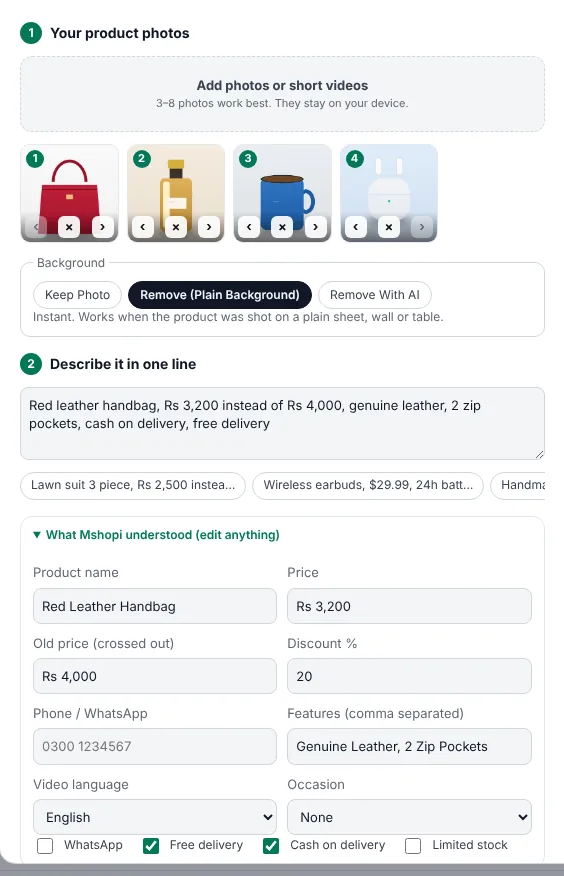
Open Mshopi and click Product video from photos (or Product video in the top bar). Drop your photos onto Add photos or short videos. They appear as numbered tiles; use the arrows to change the order and × to remove one. Photos stay on your device; nothing is uploaded.
Under Background, choose what happens to the photo backgrounds:
- Keep photo shows your photos as they are, on a background that matches the style.
- Remove (plain background) cuts the product out instantly when it was photographed on a plain sheet, wall or table. If a background isn't plain enough, Mshopi keeps that photo as it is.
- Remove with AI works with any background, using an AI model that runs on your device. It downloads once (about 115–225 MB), so use Wi-Fi the first time.
Step 2: describe the offer in one line
Type what you'd tell a customer, separated by commas. For example:
Lawn suit 3 piece, Rs 2,500 instead of Rs 3,500, pure cotton, digital print, free delivery, WhatsApp 0300 1234567
Mshopi reads the product name, the price and old price (and works out the discount: 29% here), the features ("Pure Cotton", "Digital Print"), the delivery terms and your WhatsApp number. It understands "was", "instead of" and "pehle", prices like "2.5k" or "Rs 2,500", and currencies including Rs, ₹, $, AED, SAR and £. Words like cash on delivery, limited stock or today only turn into badges, and occasions like Eid, 11.11 or wedding change the headline.
You can write in English, Roman Urdu, Urdu or Arabic. Open What Mshopi understood to see every field and correct anything. These fields are what appears in the video, so check the price and phone number carefully.
Step 3: choose a size, style and sound
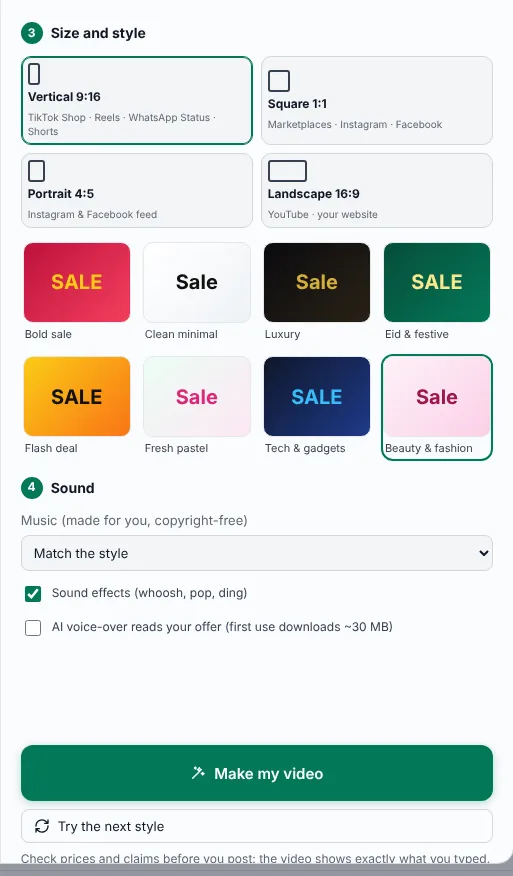
Size depends on where you will post: Vertical 9:16 for TikTok, Reels, WhatsApp Status and Shorts; Square 1:1 for marketplaces and feeds; Portrait 4:5 for Instagram and Facebook feeds; Landscape 16:9 for YouTube and websites. Our sizes guide has the full list.
Style sets the colours, font, movement and music. Mshopi marks a suggested style based on your prompt, for example Luxury for perfume or Eid & festive for an Eid sale. See all eight on the styles page.
Sound: the music is composed on your device for each video, so it is original and safe to use in ads. Sound effects add a whoosh between photos and a pop on the discount. The AI voice-over (English videos only for now) reads your offer aloud.
Step 4: make it and check it
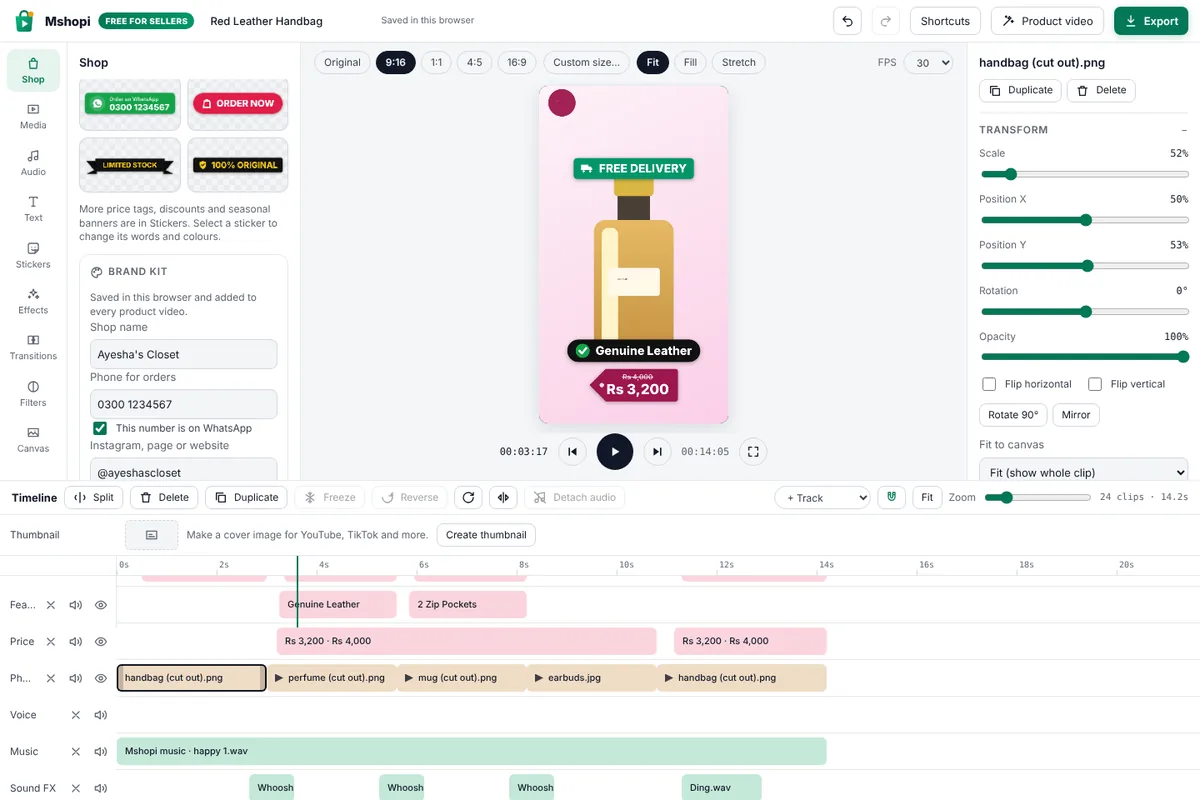
Click Make my video. In a few seconds the editor shows a complete timeline: your photos with a slow zoom, the headline and product name, the discount seal, the price tag with the old price crossed out, feature chips, delivery badges, and an end card with "Order now" and your number. The video plays automatically.
Not quite right? Click Product video again and press Try the next style to rebuild it in another style with new music. Or change details directly: click any text or sticker in the preview to select it and edit its words, colours or size in the Inspector on the right; drag it to move it. Everything is undoable with Ctrl+Z.
Step 5: export and post
Click Export. Use Download Video to Local Storage for the size you made, or one of the presets on the right: TikTok & TikTok Shop, Instagram Reels, Facebook, WhatsApp Status, Marketplace listing or YouTube. Each preset saves an MP4 at the right size, with no watermark. Then upload it in the platform's app as usual.
Common mistakes
- Blurry hero photo. The first and last scenes use it; retake it if it isn't sharp.
- Wrong price or number. The video shows exactly what you typed. Check the fields before you post.
- A fake "old price". Only cross out a price you really charged. Invented discounts break consumer rules in many countries and lose customers' trust.
- Too many features. Two to four short features (three words each) read better than a long list.
Frequently asked questions
How many photos do I need for a product video?
Three to eight. Mshopi accepts up to 12 photos or short clips; with fewer than three it reuses photos with a different zoom.
Can I make the product video in Urdu?
Yes. Write the prompt in Urdu or Roman Urdu, or choose Urdu as the video language, and the badges and call to action appear in Urdu.
Is the product video maker really free?
Yes. It is free, needs no account and adds no watermark.
Make your product video now
Mshopi is free, needs no account and never adds a watermark. Your photos stay on your device.