How to make marketplace listing images with a white background
On a marketplace, your main image is your shop sign. Buyers scroll past dozens of similar products and click the one that looks clear and trustworthy. Here's how to make clean white-background listing images, which other images to add, and how to make sale posts from the same photo.
The main image: simple rules that work almost everywhere
- Plain white background. Most marketplaces ask for it on the main image, and it looks clean in search results.
- The product fills most of the frame, around 80–90% of the image, so it's easy to see in small thumbnails.
- Only the product that's being sold: no extra props, no text, no badges, no logos and no watermarks on the main image.
- Square and large enough to zoom. 1000×1000 or larger is a common minimum; 2000×2000 gives buyers sharp zoom.
- True colours. What buyers see should match what arrives; colour surprises cause returns.
Rules differ and change. Each marketplace (Daraz, Amazon, Etsy and others) publishes its own image requirements. Check your marketplace's seller help pages for current sizes and what's allowed, especially on the main image.
Making a white-background image in Mshopi
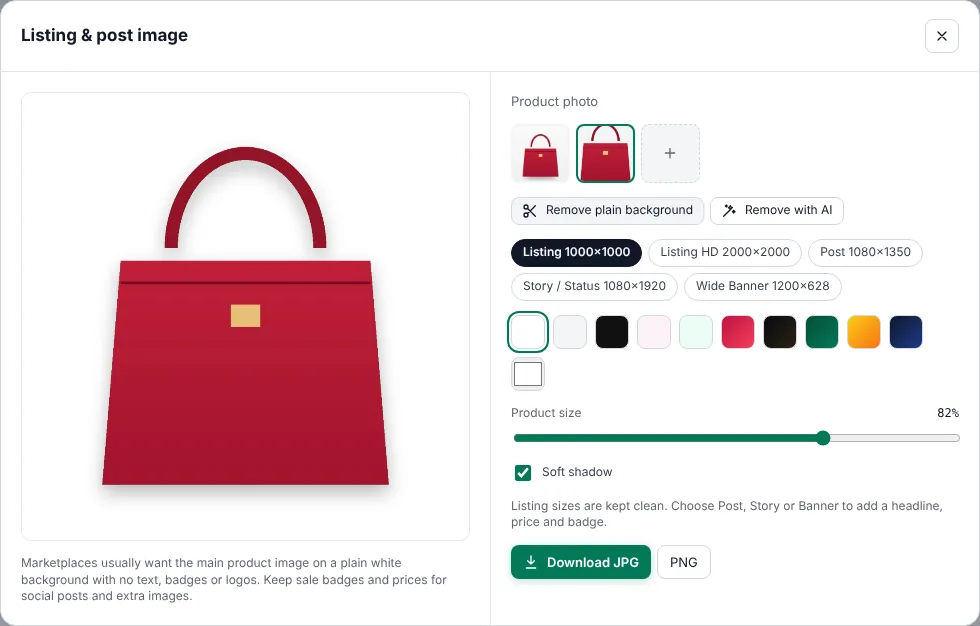
- Click Listing & post image (on the start screen or in the Shop tab).
- Click + to add your photo, or pick one you already added.
- Click Remove plain background (instant, for photos on a plain surface) or Remove with AI (any background). The cut-out is selected automatically.
- Choose Listing 1000×1000 or Listing HD 2000×2000 and the white swatch.
- Set Product size to about 85% and keep Soft shadow on, so the product sits naturally instead of floating.
- Click Download JPG.
Listing sizes in Mshopi deliberately have no text, price or badge options, so your main image stays within typical marketplace rules.
The full image set buyers want
| Image | Purpose |
|---|---|
| 1. Main image | Product alone on white, front view. |
| 2. Other angles | Back, side, top: the shape from every direction. |
| 3. Close-ups | Material, stitching, texture, ports, labels. |
| 4. In use or to scale | Worn, held or in a room, so size is obvious. |
| 5. Variants | Every colour or design, photographed the same way. |
| 6. What's included | Everything in the box, laid out neatly. |
| 7. Size chart or key details | Measurements, compatibility, care instructions (where text in extra images is allowed). |
| 8. Product video | A short clean video; see the marketplace video page. |
Shoot all of them in the same session with the same light and background, so the set looks consistent.
Sale posts from the same photo
The same cut-out makes great social posts. In the listing image tool:
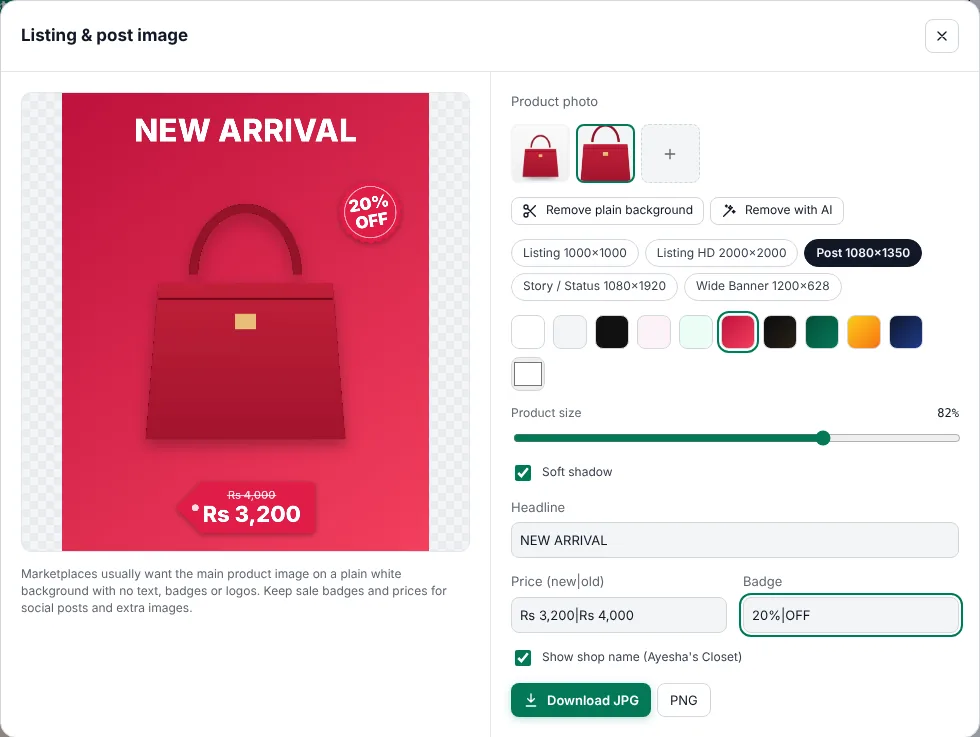
- Choose Post 1080×1350 for Instagram and Facebook feeds, Story / Status 1080×1920 for Stories and WhatsApp Status, or Wide banner 1200×628 for website banners and link previews.
- Pick a coloured background or gradient that matches your brand or the season.
- Add a Headline ("NEW ARRIVAL", "EID SALE"), a Price (write
Rs 3,200|Rs 4,000to cross out the old price) and a Badge (20%|OFF). - Tick Show shop name if you filled in the brand kit.
Consistency builds trust
When all your listings use the same white background, product size and shadow, your shop looks professional and buyers trust it more. Keep the tool's settings the same for a whole collection: same size, same fill and same shadow.
Common mistakes
- Grey "white". A photo of a white sheet isn't pure white. Remove the background and use the white swatch instead.
- Product too small in the frame, which looks lost in search thumbnails.
- Text and badges on the main image, which many marketplaces don't allow. Keep them for extra images and social posts.
- Heavy filters that change the product's real colour.
Frequently asked questions
What size should a marketplace listing image be?
Square images of at least 1000×1000 pixels are a common requirement; 2000×2000 allows sharp zoom. Check your marketplace's current rules.
Can I add text or badges to the main product image?
Most marketplaces want the main image to show only the product on white, with no text, badges or logos. Use extra images and social posts for offers.
How do I get a pure white background for free?
Remove the background in Mshopi's Listing & post image tool and choose the white swatch. It runs in your browser with no upload.
Make your product video now
Mshopi is free, needs no account and never adds a watermark. Your photos stay on your device.