How to remove the background from product photos for free
A product on a clean background looks more professional, fits marketplace rules and can be placed on any colour in a video or sale post. Mshopi has two free background removers that run on your own device. Here's how each works, when to use which, and how to get clean edges.
Two ways to remove a background
| Plain background | Any background (AI) | |
|---|---|---|
| Best for | Products shot on a sheet, wall, table or paper of one colour | Busy rooms, outdoor photos, patterned surfaces, people holding products |
| Speed | Instant | A few seconds per photo after the first download |
| Download | None | About 115–225 MB once, then cached by your browser |
| Privacy | Both run on your device. Your photo is never uploaded. | |
How the plain-background remover works
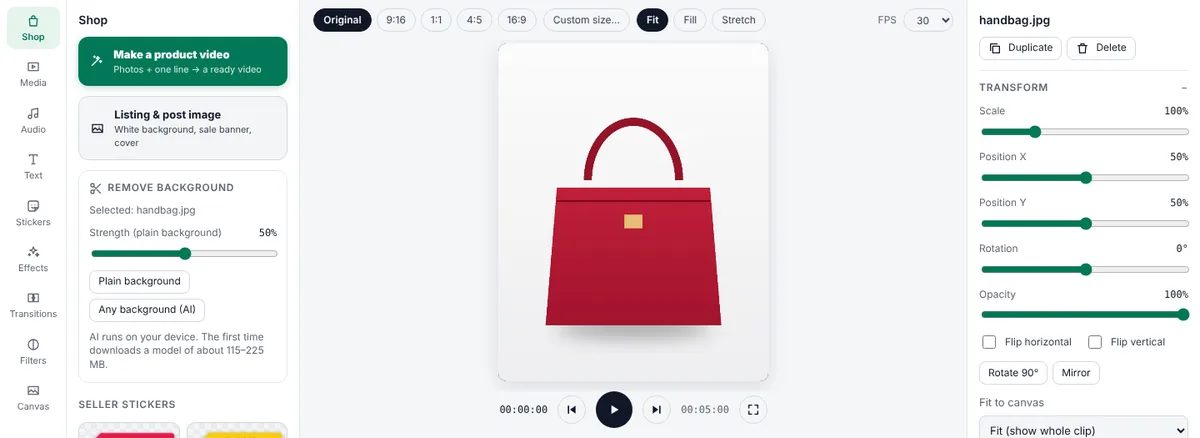
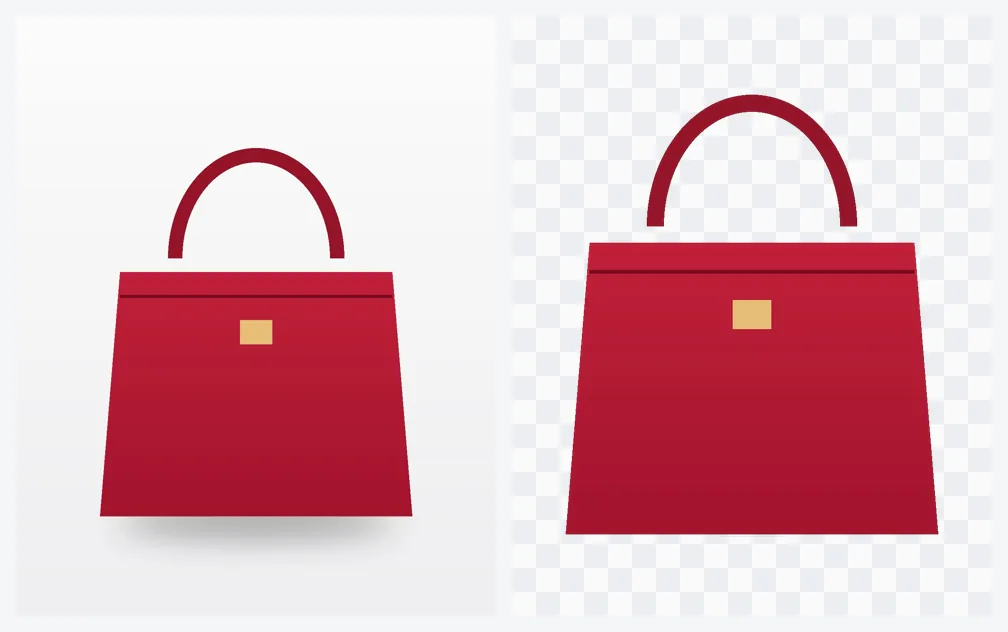
It looks at the edges of your photo to learn the background colour, then spreads inwards, removing pixels that match that colour and follow smoothly from it, and stops where it meets the product's edge. It also softens the outline and removes the background colour from edge pixels, so you don't get a white or grey halo when you place the product on a new colour.
That's why it needs a plain background: if the background has strong patterns or the product touches the edge of the photo, it can't tell where one ends and the other begins. If very little is removed, Mshopi tells you and keeps the photo, so you can try the AI option.
Step by step: in a product video
- Add the photo to the timeline (Media tab, click the photo) and click it to select it.
- Open the Shop tab. Under Remove background, click Plain background or Any background (AI).
- The cut-out replaces the photo on the timeline and is set to Fit so the whole product shows. Ctrl+Z brings the original back.
- Choose a background in the Canvas tab (colours or gradients), or let a style's background show behind it.
Faster: in the product video maker, choose a background option once and it's applied to every photo automatically.
Step by step: for a listing image
- Click Listing & post image in the Shop tab or on the start screen.
- Add or pick your photo, then click Remove plain background or Remove with AI.
- The cut-out is selected automatically. Pick white for marketplaces, or any colour or gradient for social posts. Turn on Soft shadow so the product doesn't look like it's floating.
- Download as JPG (smaller) or PNG.
Getting clean edges
- Leave space around the product when you take the photo. Products touching the edge of the frame are hard to separate.
- Contrast helps: dark products on light backgrounds and light products on darker ones give the cleanest cut.
- Strength slider (plain background): if bits of background remain, raise it; if parts of a light product vanish, lower it.
- Shadows: soft shadows on the background are usually removed; very dark shadows may stay. Light from the side and a white card on the other side reduce them.
- Hair, fur and fine fabric are hard for every remover. The AI option handles them best.
Why "on your device" matters
Many online background removers upload your photo to a server, limit free use or reduce the resolution unless you pay. Mshopi's removers run in your browser: no upload, no account, no daily limit, and the result keeps your photo's quality (up to 2400 pixels on the long side for AI, which is plenty for listings and videos). The AI model is BiRefNet lite, an open model released under the MIT licence.
Troubleshooting
- "The background isn't plain enough": use the AI option or reshoot on a sheet.
- AI download is slow or fails: it's a large one-time download. Use Wi-Fi, keep the tab open, and try on a computer if your phone runs out of memory.
- Product looks cut off: lower the strength (plain) or try AI; check that the product wasn't touching the photo's edge.
Frequently asked questions
Is there a free background remover with no upload?
Yes. Mshopi removes backgrounds in your browser, so the photo never leaves your device, with no account and no daily limit.
Which background remover should I use?
Use "Plain background" for photos on a single-colour surface (instant). Use AI for busy or outdoor backgrounds.
Why does the AI remover download a file?
The AI model runs on your device instead of a server, so it downloads once (about 115–225 MB) and is then cached by your browser.
Make your product video now
Mshopi is free, needs no account and never adds a watermark. Your photos stay on your device.